.svg)
| This feature is only available on the web application. |
You can download employee check data as an Excel file. Each export covers a single check type, such as First Aid Certificate or Comprehensive Motor Vehicle Insurance. You can't mix data from multiple check types into one file. This article covers how to download an export, what it contains, and what's changed for checks with custom or configurable data fields.
Downloading a data export
- From the Employees list, use the filtering options on the left to narrow the export to the employees, locations, or check types you need. Only employees matching your filters are included.
- Select Export to Excel.
- Choose the export for the check type you want.
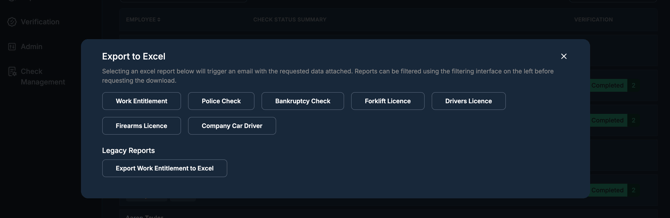
Selecting an export doesn't download it straight away. It queues the file for generation and emails it to you once it's ready (see Getting the file, below).
The exports available depend on which checks your company uses: you'll only see buttons for check types configured for your account.
A Legacy Reports section may also appear below the main list. Despite the name, this is still a data export, not an email report. It just contains an older, fixed export format, for example Work Entitlement or RSA, kept for customers still using it. Some check types, including Work Entitlement, appear in both places: the main list has its current, standard export, and Legacy Reports has the older format for customers who haven't moved off it.
Getting the file
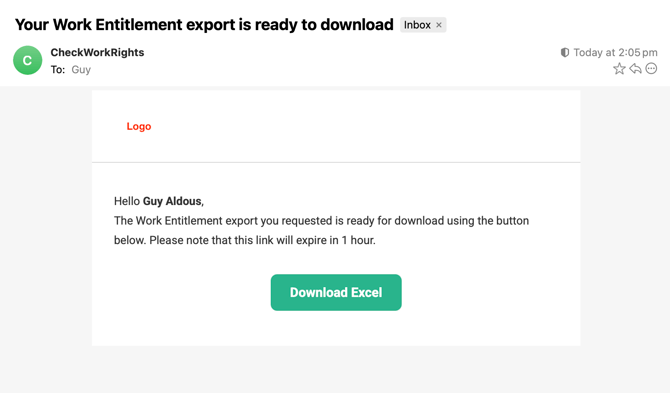
Once your export is ready, CWR emails you with a Download Excel button. The email confirms which check type the export is for, and the download link expires 1 hour after the email is sent. If it expires before you download it, start the export again.
What's in an export
Every export starts with the same set of employee and check columns, regardless of check type: the employee's name, email, work location, job role, verifier, and the check's verification status.
After that, each export adds columns specific to that check: one column for every data field collected on the check's document. For example, a Comprehensive Motor Vehicle Insurance check might add columns for the policy start and expiry dates, plus each declaration the employee confirmed.
This is new: previously, only a limited, pre-configured set of fields could be included for custom and configurable checks. Now every field collected on the check is included automatically. You don't need to select specific fields, and any new field your company adds to a check later appears in the export automatically too. Off-the-shelf checks like Work Entitlement or Working With Children Checks work as they always have.
Column order follows the order fields appear when the check was set up, and values are formatted consistently with how they appear elsewhere in CWR. Dropdown answers, for example, show as their full label, not a code.
Frequently asked questions
Why does my export now have more columns than before?
Your company's checks now export every field collected on the check document, not just a pre-selected subset. This applies to custom and configurable checks. Off-the-shelf checks like Working With Children Checks or Work Entitlement are unaffected.
Can I choose which fields are included?
No. All fields collected on the check are included by default, in the order they appear on the check's setup. If you only need certain columns, remove the rest after opening the file in Excel.
Why can't I see an export for a check type I use?
Export buttons only appear for check types configured on your account. Contact support if a check type you use is missing.
What does "Legacy Reports" mean?
It's an older, fixed export format kept available for customers who were using it before the current exports launched. It's still a data export, not the separate email reporting feature. If you don't recognise it, use the main export list instead.
How long does a data export take to arrive?
Exports are generated in the background. You'll get an email with a download link once it's ready, usually in under a minute. Large exports with complex filters, many employees, or many fields may take longer.
My download link stopped working. What happened?
Download links expire 1 hour after the export-ready email is sent, for security. Go back to the Employees list and start the export again to get a fresh link.
Need more help?
Contact CWR support if an export is missing data you expect, or if you can't find the export you're looking for.