.svg)
Before you start
Only admins can use this function. It works for user types restricted to multiple business units, and other user types won't appear in the list. Your business units also need to exist in CWR already, because this function never creates them.
Your spreadsheet needs one row for each user and business unit pair, so a user who should see three business units appears on three rows. Include these columns:
- email address, which is used to match users
- first name and last name, used only to create new users
- the business unit, as its name, internal reference, or CWR ID (pick one and use it for every row)
You can download a sample file from the upload screen.
Aligning your users
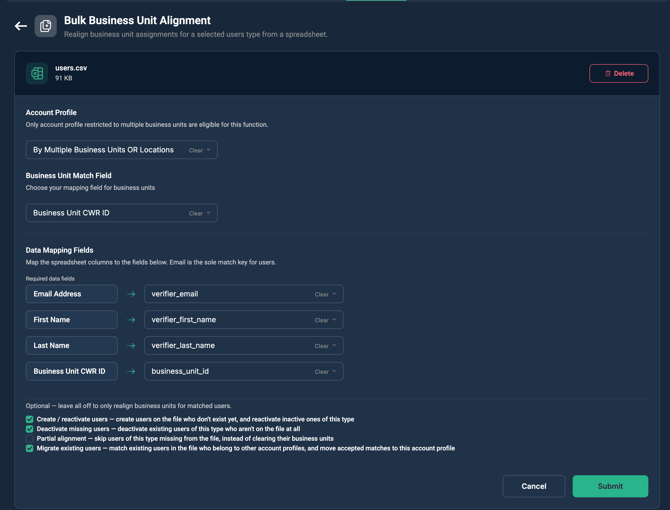
- Go to Admin, open the Bulk Operations tab, find Bulk Business Unit Alignment and select Upload Spreadsheet.
- Upload your spreadsheet (XLSX or CSV).
- Under Account Profile, choose the user type you want to align.
- Under Business Unit Match Field, choose how your spreadsheet identifies business units: CWR ID, Name, or Internal Ref.
- Map your spreadsheet columns to Email Address, First Name, Last Name, and the business unit field.
- Choose any of the optional settings below, then select Submit.
You can't select Deactivate missing users and Partial alignment together. Choosing one clears the other.Option What it does Create / reactivate users Creates a new user for any email not found in CWR. Reactivates inactive users of the selected user type. Deactivate missing users Deactivates active users of the selected user type who aren't on your spreadsheet. Partial alignment Leaves users who aren't on your spreadsheet untouched. Use this when your spreadsheet only covers some of your users. Migrate existing users Lets you move active users who currently have a different user type over to the selected user type. - Review the changes. Nothing has been saved yet. If any rows couldn't be matched, the review screen tells you how many and links to an error report you can download. Changes are grouped into tabs:
- Create / reactivate: new users, and inactive users who will be reactivated.
- To deactivate: users who will be deactivated.
- To realign: each user's current business units next to their new ones.
- Migrating to [user type]: users moving from another user type, with the type they're moving from and their current and new business units.
- Unchanged: users whose business units already match your spreadsheet.
- Users not in file: users of this type who aren't on your spreadsheet and will have all their business units removed. This tab only appears when neither Deactivate missing users nor Partial alignment is on.
Name : Reference. If either one is blank, only the other shows. - Select Confirm alignment. A summary shows how many users will be created, deactivated, realigned, and migrated. Select Confirm to apply the changes, or Cancel to go back.
When the alignment finishes you return to the Bulk Operations page. If any updates failed, you stay on the review screen and can download a report listing them.
How users are updated
For every user on your spreadsheet, CWR removes all of their current business units and replaces them with the ones on your spreadsheet. Make sure each user's rows list every business unit they should keep, not only new ones.
Users of the selected type who aren't on your spreadsheet lose all their business units, unless you've turned on Partial alignment (they're left alone) or Deactivate missing users (they're deactivated).
Why a row might be skipped
Skipped rows don't stop the rest of the upload. They're listed in the error report with a reason. Common reasons:
- The email address isn't valid.
- No business unit was given, or the business unit doesn't match any business unit in CWR, or matches more than one.
- The email belongs to a user with a different user type, and Migrate existing users is off.
- The email belongs to an inactive user with a different user type. Inactive users can't be migrated.
- The email isn't in CWR, and Create / reactivate users is off.
- The email is already used by a user outside your company.
- A user can't be deactivated because they have a pending verification, or they're the default verifier for a business unit, your company, or a current employee.
Frequently asked questions
Does the email address need to match exactly?
No. Capitals and extra spaces are ignored, so Jane.Smith@Example.com matches jane.smith@example.com.
Can I use names to match users?
No. Users are matched by email only. Names are used when creating a new user.
What happens to a user's email reports when I migrate them?
They're subscribed to any email reports the new user type gets by default. Existing subscriptions stay as they are.
A user I deactivated was the verifier for some former employees. What happens to those employees?
Former employees don't block deactivation. The user is removed as their verifier, and their business units are removed too.
Does this change anything else about my users?
No. It only changes business unit assignments and, if you've chosen those options, whether users are active and which user type they have.
Need more help?
Contact CWR support if you're unsure how to set up your spreadsheet, or if your report shows errors you can't resolve.