.svg)
The Refapp partnership enables CheckWorkRights to create and manage reference checks as part of a customer’s recruitment and background checking process. Connecting directly with Refapp to automate reference checks inside your existing workflows eliminates back-and-forth with candidates and referees, delivering clear results to support confident hiring decisions.
Once you have enabled a reference check for a candidate in CheckWorkRights choose a reference check template that suits the candidate’s job role. This will trigger the MyCheck email workflow to collect the candidate’s referee details. Once the candidate enters their details, the referee will be contacted via email/SMS.
When the referees complete the questionnaire, the designated reviewer will be alerted that the result is ready for review. The approved referee report will be available in the candidate/employee profile, deleted only when the profile is made historical in CheckWorkRights.
|
Contact CheckWorkRights Team to enable Reference checks in your account.
|
Getting Started
Connect CheckWorkRights and Refapp integrations
Our Team will guide you through the integration connection between CheckWorkRights and Refapp.
CheckWorkRights will be sent your Refapp integration keys, and complete the following to connect the accounts.
Navigate to Admin tab >Select Integrations tab >Select ‘Enable’ Refapp >Add the Token and UUID provided to you by Refapp, > Hit save > Account is now linked to Refapp
Project Templates
When an organisation has signed with CheckWorkRights to complete their reference checks, they will be contacted by the Refapp customer success team to set up their business profile and guided through the creation of a project.
Project templates allow the user to set up Job role specific referee templates, ensuring questions are targeted. Organisations can have one, a few or multiple templates in Ref App, the template that relates to the position you are recruiting can be assigned automatically through CheckIntelligence, a defined Recruiter package or manually in CheckWorkRights.
The project templates are managed in Refapp, your organisation will have dedicated admins who can add, update and remove templates, these changes are reflected in CheckWorkRights in real time.
Changing project templates with active candidates/employees associated with them will cause this to fail, it is recommended to only remove project templates not in use.
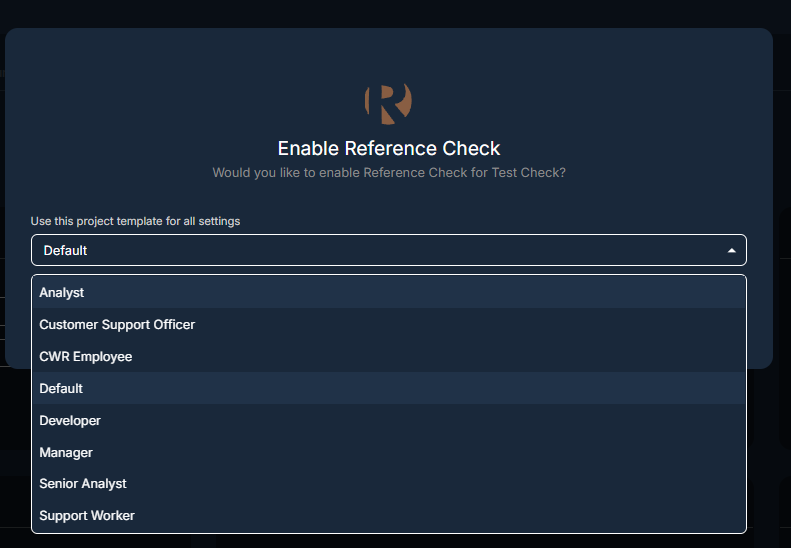
Step 1: Enable the check and choose the project template
Once Reference Checks are enabled in your account, you can assign the reference check to your candidate by enabling the check. When enabling the check, you will be asked to select the project template that suits the role the candidate is applying for. This triggers a MyCheck email and creates the Refapp project to capture the referee details from the candidate and the referee responses.
Step 2: Candidate inputs Referee Details
The candidate receives the MyCheck email with a reference check request. When they click to start the check, they are taken to the Refapp site to provide their referee information. The candidate can send a referee request as they complete the information, triggering the referee email/SMS to be sent.
If needed, the candidate can return through the MyCheck link until all the referee details have been entered, once sent details can not be edited or viewed by the candidate for security. The workflow ends once all referee details are entered, and the candidate can shut their browser.
Step 3: Referee Responds
When the candidate completes the referee details, an email or SMS will be sent to them with a link to complete the questions selected as part of the project template set up.
Once the required number of referees complete the request, CheckWorkRights is updated, and the designated verifier is notified.
Verifiers with access to the CheckWorkRights Web application can view live status updates in CheckWorkRights when they click into the check (e.g. Awaiting Candidate Submission, Awaiting Referee Submission, Awaiting Employer Review, Completed etc.).
Step 4: Verifying the Referee Responses
Once all referees have responded, the designated verifier will receive an email from CheckWorkRights to complete the review and accept or reject the referee report.
When at least one referee has completed the request, recruiters who have access to the CheckWorkRights web app can choose to continue to verification without all referees completing the reference check. The recruiter can proceed if confident that the existing responses are sufficient, and will be asked to document the decision reason, this is stored as metadata for audit purposes.
Dashboard Reporting
Reference check statuses for candidates can be viewed on the candidate dashboard or an individual candidate's profile. Navigate to the ‘Candidate’ tab to see a summary of all check outcomes, clicking into any status will show candidate and check information related to the status.
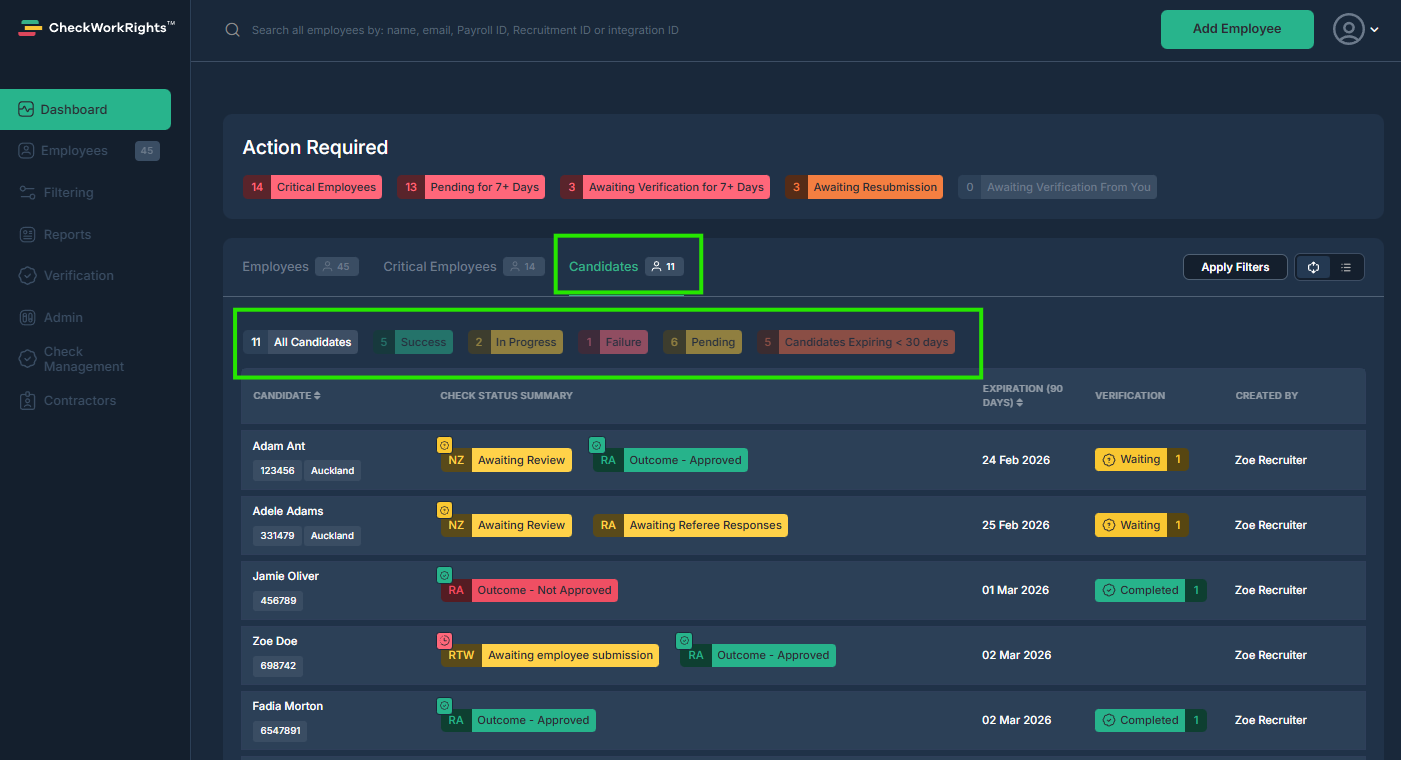
The Statuses associated with Reference Checks are as follows
|
Status |
Description |
|
Awaiting Referee Details from Candidate/Employee |
Waiting on Candidate/Employee to provide their referee details |
|
Awaiting Referee Response |
Candidate/Employee has provided their referee details and the system is waiting for the referee to respond |
|
Pending Employer Review - Fraud Detected |
Referee response has been received and has a fraud warning to be reviewed |
|
Pending Employer Review |
Referee response has been received and is waiting for designated verifier to review |
|
Outcome Approved |
Referee report has been reviewed and accepted by the designated verifier |
|
Outcome Not Approved |
Referee report has been reviewed by the designated verifier who rejected the outcome. |
|
Outcome - Updated (Post-Finalisation) |
When a verifier completes the review of a referee report without all referees responses and they respond post the acceptance, the report is updated with the new information and flagged as updated post finalisation |
FAQ's
Fraud Detection within the Referee report
The Refapp system will detect and show fraud in the check summary screen and when the verifier is completing their review of the referee report. Fraud detection includes ‘same-ip-address’ ‘same-phone-number’
This is not a common case, and the alert doesn't necessarily mean an actual fraud. It can be explained by:
-
The referees and the candidate may work for the same company and therefore receive the same IP address when connecting to the company’s internal network.
-
The referees and the candidate have submitted their answers when they are staying at the same hotel, restaurant, event, etc.
Suggested ways to verify the validity of the reference:
-
Check whether the referees have linked their response to a LinkedIn or Facebook profile. You will see this in the reference check report, where the referee has a symbol by their name. If you hover over the symbol, you see which name they have verified.
-
Compare the referees’ email addresses and telephone numbers. Google these and see if you can find more information.
-
View the reference report and compare the referees’ answers, looking especially at the Free-text questions.
-
Call the referees and ask for additional information to verify that they are different persons and that they are whom they state.
Referee declined to respond
This outcome will not specifically show in CheckWorkRights, the referee will show as requested, if the user has access, they can log into Refapp and see the progress update, including any referees that have declined. CheckWorkRights team are working closely with Refapp to enhance the feature to allow this status to be shown in the CheckWorkRights dashboard.
I need to check a completed Referee report. How do I get access?
You can access the report by clicking on the individual's profile.
Referee reports are kept until the candidate or employee is made ‘Historical’ (Terminated) in CheckWorkRights). Candidates are automatically made historical 90 days after they are created in the system and have not been marked as Active (turned into an Employee).
Can I change the Project template I selected for a candidate?
This is not supported, a reference check template cannot be changed once assigned in CheckWorkRights or Refapp.